
Last Updated on April 7, 2026 by Denis Yankovsky
Images courtesy of Napkin AI
Table of Contents
Key Takeaways
- Napkin AI simplifies complex workflows through intuitive visual mapping.
- Reduces time spent on manual task organization.
- Enhances clarity for both creative and analytical projects with ready-made visuals.
- Boosts overall efficiency for individuals and teams.
- Provides a user-friendly interface for seamless integration with the apps you already use.
Today, balancing multiple projects can quickly feel chaotic — meeting notes, scattered ideas, and last-minute slide requests eat up your focus. Many professionals end up spending hours on formatting and organizing instead of making decisions. Napkin AI is an AI-powered productivity tool that turns your raw text into clear, shareable visuals so your team can move faster and stay aligned.
The platform takes short prompts or meeting notes and produces polished visuals — flowcharts, diagrams, and slide-ready images — so you spend less time on layout and more time on decisions. For example, paste five bullet points from a meeting and get a structured diagram in about a minute — a quick way to turn a meeting recap into a ready-to-use slide.
Whether you’re a creative thinker sketching rough concepts on a napkin or a data-driven manager preparing a formal presentation, Napkin AI gives everyone an easier way to turn text and quick thoughts into meaningful visuals. The result: better-looking outputs with consistent colors and fonts, higher overall quality, and less back-and-forth on simple layout tasks.

Understanding the Core Philosophy of Napkin AI
Napkin AI is built around a simple idea: messy text and passing ideas should become precise, usable visuals quickly. People grasp concepts faster when they can see relationships, not just read about them—so Napkin AI automates that conversion to save you time and reduce friction.
Bridging Thought and Visual Representation
Give it a sentence, a bullet list, or a pasted meeting note. Napkin AI reads your input, pulls out the main points, and picks a visual format that fits. The result is a concise diagram that keeps your intent intact while making priorities and connections obvious.
How AI Transforms Textual Ideas into Structured Diagrams
The conversion follows three practical steps you can try in minutes:
| Step | Description |
| 1. Text Analysis | The AI parses your text, spotting entities, actions, and dependencies. |
| 2. Concept Identification | Key concepts are prioritized and categorized by relevance and role. |
| 3. Visual Mapping | The system maps concepts into a diagram using appropriate shapes, colors, and layout—e.g., process boxes for workflows, icons for resources, and arrows for flow. |
Micro-examples you can try: a short prompt like “launch plan: research → prototype → user testing → launch” will create a timeline-style diagram; “User signup → onboarding → activation” becomes a flowchart; and “Service A ↔ Service B ↔ DB” yields a simple network view. Try one of these sample inputs in the demo to see how your idea turns into visual mapping in seconds.
Getting Started with the Napkin AI Interface
Jumping into Napkin AI is quick and painless — the interface is designed so users can move from an idea to a polished visual with almost no setup. The platform prioritizes clarity and speed, so your first project will feel familiar the moment you log in.
Navigating the Dashboard for Maximum Efficiency
The dashboard is your central workspace: projects, templates, and integrations live here. Clean menus and a helpful search make it easy to find recent projects or template starters so you can focus on creating visuals and project roadmaps.
When you log in you’ll see three primary areas:
- Project Overview: A quick snapshot of active projects — status, recent updates, and fast access to open files.
- Template Library: A curated set of templates — from product roadmaps to meeting notes — you can pick and customize to get started faster.
- Settings & Integrations: Personalize your workspace and connect the tools you use so everything flows together.
Watch the quick product tour to see these areas in action:
Setting Up Your First Project Workspace
You can create a workspace in three simple steps — no design skills required. Napkin AI works whether you’re drafting solo or coordinating a cross-functional effort.
To set up your workspace, follow these steps:
- Choose a Template: Try “Product Roadmap – Quarterly” from the library to jump-start your layout.
- Customize Your Workspace: Tweak sections, add or remove blocks, and set colors or fonts to match your needs.
- Invite Team Members: Add collaborators, assign roles, and enable edit or comment permissions so everyone can contribute.
| Feature | Description | Benefit |
Project Overview | Snapshot of current projects | Easy tracking of project status |
| Template Library | Variety of customizable templates | Quick start to projects with professional templates |
| Collaboration Tools | Invite team members, define roles | Enhanced teamwork and productivity |

Key Features That Define Napkin AI
Napkin AI brings together a set of practical features designed to speed up how you produce visuals and communicate ideas. The emphasis is on automating repetitive design steps so teams can deliver higher-quality presentations and diagrams faster.
Automated Visual Synthesis of Complex Concepts
Save minutes (or hours) by letting the AI do the heavy lifting. Napkin AI converts plain text into polished visuals automatically — you give a short description and the system returns a structured flow, diagram, or chart you can refine and export.
Key benefits:
- Faster outputs: convert short text or bullet lists into a ready diagram in seconds.
- Less manual work: drastically reduce the need for manual diagramming and layout fiddling.
- Clearer communication: visuals that surface relationships and make complex concepts easier to grasp.
Customizable Templates for Professional Presentations
The platform includes a robust template library for common use cases — product roadmaps, strategy decks, marketing plans, and more. Each template lets you customize colors, fonts, icons, and layout so the final output matches your brand and presentation needs.
| Template Type | Industry / Use | Customization Options |
| Business Strategy | Corporate, Finance | Colors, Fonts, Layout |
| Project Management | IT, Construction | Charts, Icons, Text |
| Marketing Plans | Marketing, Sales | Graphs, Images, Themes |
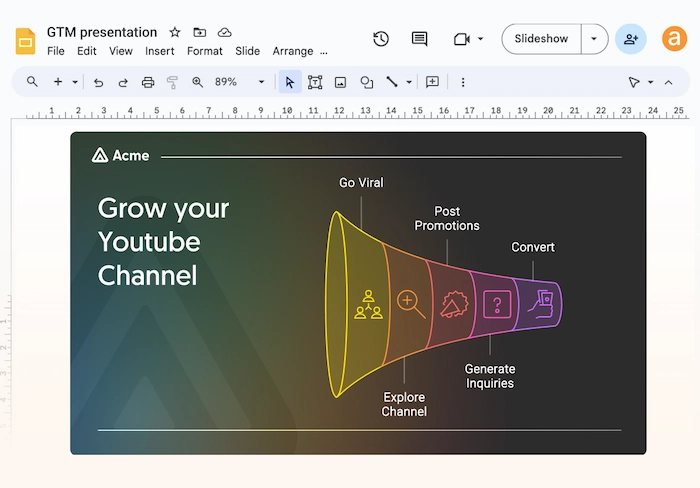
Export formats include presentation-ready images and slides (PNG, SVG, PDF). In practice, that means you can type five lines of text and quickly get a clean diagram to drop into a slide deck or a project page — a small change that speeds up reviews and sharpened decision-making.
Enhancing Workflow Productivity with Napkin AI
Boosting workflow productivity is central to Napkin AI’s value. By automating routine visual tasks, the tool lets teams focus on higher‑value work, cuts down manual mistakes, and speeds up decisions.
Reducing Time Spent on Manual Diagramming
Manual diagramming can eat into project schedules — especially when visuals need frequent updates. Napkin AI automates the diagramming process, turning short text prompts into accurate, editable diagrams so you get consistent visuals in seconds instead of hours.
Quick, copy‑and‑paste examples to try in the demo (Input → Output):
- “User journey: sign up → onboarding → purchase” → timeline flowchart with labeled stages and milestone shapes.
- “Dependencies: API → backend → DB” → architecture diagram with icons and connection arrows.
That automation saves time on repetitive layout work and lowers the chance of formatting errors—especially useful when projects require frequent revisions.
Streamlining Brainstorming Sessions for Remote Teams
Brainstorming can stall for distributed or remote teams when ideas live in scattered notes. Napkin AI improves collaboration by converting live ideas into shareable visuals in real time, so everyone sees the same diagram and can comment or iterate.
Recommended quick uses in meetings: standups (status maps), architecture reviews (component diagrams), and ideation workshops (clustered idea maps). Try converting a short meeting note to a diagram in the demo to see how the platform works in practice — many users report saving several minutes per artifact.
| Feature | Benefit | Impact on Productivity |
| Automated Diagramming | Saves time, reduces errors | High |
| Real-time Collaboration | Enhances teamwork, fosters creativity | Medium |
| Visual Representation | Improves understanding, facilitates communication | High |
The Technology Behind Napkin AI
Napkin AI’s strength comes from practical, well-integrated technology that turns everyday text into high-quality visual outputs. At a high level, the platform combines modern natural language processing (NLP) — which reads and understands your words — with intelligent visual mapping — which chooses layouts, shapes, and icons that best express relationships.
Under the hood, the system parses input to extract entities, actions, and relationships, then selects a layout that matches the content: flowcharts for processes, timelines for plans, or network diagrams for architectures. Supported inputs include plain text, bulleted lists, and pasted meeting notes — each becomes an editable visual you can refine or export.
Natural Language Processing and Visual Mapping
Put simply: the NLP figures out intent and context (not just keywords), and the visual mapper turns that understanding into a clear diagram. That combination improves the generation quality so outputs better reflect your original meaning.
Ensuring Data Privacy and Security for Users
Data protection matters. Napkin AI uses industry-standard encryption and established data-handling practices to keep your project data confidential. If you handle sensitive material, check the product’s security and compliance documentation (SOC 2, GDPR, etc.) before enabling integrations.
What this means for you: faster, more predictable visual generation; consistent quality; and confidence that your files and collaborators are protected. (For developer details, link to the platform’s API and security docs from the product page.)

Comparing Napkin AI to Traditional Design Tools
Napkin AI takes a different approach than legacy design software: it prioritizes speed and automation so teams can produce clear visuals directly from text inputs, while traditional design tools focus on manual control and pixel-level customization.
Advantages of AI-Driven Design
AI-driven design like Napkin AI reduces repetitive work by turning ideas into diagrams automatically. That makes it a great choice for quick daily planning, communicating concepts, and generating draft visuals that non-designers can refine without learning complex tooling.
When to Use Napkin AI vs. a Traditional Tool
- Use Napkin AI: for rapid ideation, project roadmaps, meeting visuals, and draft diagrams that your team can iterate on. Example: paste a meeting recap and get a slide-ready diagram in minutes.
- Use a traditional design tool: when you need final marketing assets, detailed UI mockups, or pixel-perfect styling for production work.
Cheat sheet: choose Napkin AI for fast drafts and team alignment; choose a traditional tool when final visual polish and detailed control matter most.
Practical Use Cases for Professionals
Napkin AI is versatile — teams across roles use it to speed planning, clarify complex concepts, and produce shareable visuals that stakeholders actually read. Below are concrete examples that show how the tool fits into real professional workflows and saves time.
Creating Project Roadmaps for Product Managers
Product managers rely on clear product roadmaps to align stakeholders. With Napkin AI you can paste a short project brief and get a timeline-style roadmap with milestones, owners, and colored phases in minutes.
How-to (3 steps):
- Paste your project brief or bullet list (try this sample: “Q2: research, prototype, beta, launch”).
- Choose a roadmap template and adjust dates or owners.
- Export as an image or slide, or share the live project with stakeholders.
Result: a professional roadmap in minutes instead of hours — perfect for sprint planning and stakeholder updates. Try this sample input in the demo to see an instant roadmap.
Simplifying Technical Documentation for Developers
Developers can turn dense specs or architecture notes into digestible diagrams for documentation and onboarding. Napkin AI’s automated visual synthesis converts calls, services, and data flows into network diagrams or sequence charts automatically.
Example (paste to try): “Auth service → API gateway → service A/B → DB” — Napkin AI will produce a labeled architecture diagram with icons and arrows you can edit and export.
Beyond product and engineering, marketing and operations teams can use Napkin AI to turn performance metrics into charts and slide-ready visuals, or to draft process diagrams for internal docs. These use cases help users across a company produce higher-quality visuals faster—useful for roadmaps, release plans, architecture reviews, and documentation handoffs.
Advanced Tips for Power Users
Power users can get more value from Napkin AI by combining its visual generation with integrations and brand controls—this unlocks automation and consistent, on‑brand outputs across teams.
Integrating Napkin AI into Existing Tech Stacks
Connect Napkin AI to your toolchain to automate repetitive tasks and keep visuals in sync with project data. Common approaches include:
| API Integration | Use the Napkin AI API to programmatically send text or files and receive generated diagrams. | Automated workflows, real-time syncing with your systems. |
| Zapier Integration | Create no-code Zaps that trigger Napkin AI from form submissions, calendar events, or repo updates. | Fast setup, broad app compatibility. |
| Native Integrations | Built-in connectors with popular project and collaboration apps. | Seamless sharing and reduced setup time. |
Pro tip: for quick automation, start with a Zapier flow (e.g., new meeting notes → generate diagram → save to project). For deeper automation, use the API.
Quick-start for API users:
- Get an API key from the platform
- POST a short prompt or text payload describing the diagram
- Retrieve and store the returned image/SVG for your app.
Refining AI Outputs for Specific Brand Guidelines
Keep visuals on-brand by uploading brand assets or configuring a style profile. Typical files and settings include logos (SVG/PNG), color hex codes, and preferred fonts. Follow this simple checklist:
- Logo files: SVG preferred, high-res PNG fallback.
- Color palette: primary/secondary hex codes (add exact hex values).
- Typography: font family and fallback choices.
- Icon set preferences and allowed imagery.
Pro tip: include an example color/ font pair in your style profile (e.g., #1A73E8 with “Inter”) so generated drafts match your brand right away. Note: check the developer docs to confirm whether assets are applied as style rules or used for model tuning. With these steps, Napkin AI will produce consistent files with the right icons, shapes, and layout ready for export or embedding.
Common Challenges and How to Overcome Them
Napkin AI streamlines the visual creation process, but like any advanced tool it has limits. Knowing the typical pitfalls and following a short validation workflow helps you keep output quality high and avoids surprises when you share visuals with stakeholders.
One common hiccup with AI-driven visuals is what people call AI hallucinations — the system sometimes infers relationships or labels that weren’t actually in your input. With visual outputs, that usually shows up as incorrect labels, made-up connections, or misplaced data in diagrams. Catching these early keeps your data and diagrams reliable.
Managing AI Hallucinations in Visual Data
Reduce hallucinations by giving clearer inputs and explicit relationships. Practical steps:
- Start with a concise, structured input—short bullets or numbered steps work best instead of long freeform text.
- Spell out relationships and roles (for example, use “API calls DB” instead of “API and DB interact”).
- Review and correct labels, arrows, and connections immediately after generation—don’t skip this quick sanity check.
Sample prompt to try: “User signup → email verification → onboarding → purchase”. If the generated flowchart reverses an arrow or mislabels a step, swap the direction, update the label, and save the corrected version.
Optimizing Workflow When AI Suggestions Need Tweaking
Treat AI outputs as a strong first draft and use feedback loops to improve results over time:
- Create a short validation checklist for each visual: correct labels, expected connections, data accuracy, and visual hierarchy.
- Use in-app feedback or annotation tools (if available) to record corrections so your team has one source of truth.
- Run small pilot tests: feed representative inputs, review outputs, and document common fixes to refine prompts and templates.
What to review on every generated visual: labels, connection directions, key data values, and overall readability—especially for flowcharts and architecture diagrams. If your organization needs extra assurance, do a staged rollout: keep visuals internal until they pass review.
Finally, check whether Napkin AI provides customer-accessible feedback or retraining mechanisms—if it does, submit corrections systematically so the system improves for your specific use cases and users. Following these steps will help you manage common challenges and keep your visuals accurate and useful.
The Future of Visual Productivity with Napkin AI
Visual productivity is entering a new phase where AI turns written ideas into useful, shareable visuals almost instantly. Looking ahead, this change will reshape how teams plan, communicate, and iterate—making visuals a first-class part of everyday work instead of an afterthought.
Napkin AI is positioned to help lead that shift by rolling out planned features and improvements that emphasize speed, smarter generation, and better collaboration.
Upcoming Features and Roadmap Expectations
Rather than firm release dates, expect a steady stream of improvements focused on:
- Smarter AI-driven template suggestions that better match your input and context.
- Tighter platform integrations with popular productivity software for smoother handoffs and fewer copy/paste steps.
- Advanced collaboration features that let distributed teams gather real-time feedback and iterate together.
How this helps you:
- Faster generation of presentation-ready visuals from simple prompts or drafts.
- Less manual polishing—templates and suggestions that fit your content and reduce rework.
- Improved cross-team alignment with shared, editable visuals that keep everyone on the same page.
The Evolution of AI in Collaborative Environments
As AI capabilities evolve, Napkin AI’s role in collaborative workflows will grow—from creating first draft visuals to suggesting smarter layouts and streamlining exports. Expect improved contextual suggestions, smarter layout generation, and cleaner export/workflow options that reduce friction from idea to delivery.
If you’d like early access or product updates, sign up for roadmap notifications or beta invites on the platform to be notified when new versions are available.
Conclusion
Napkin AI changes how teams turn scattered ideas into clear, usable visuals. As a focused productivity tool, it uses automated visual synthesis to convert messy notes and short text inputs into presentation-ready diagrams and images, so your team spends less time on formatting and more time making decisions.
Across use cases — from crafting project roadmaps to polishing slides for a stakeholder presentation—Napkin AI streamlines workflows and raises the baseline quality of visuals delivered by product, design, and engineering teams.
Want to try it now? Quick next steps you can do today:
- Paste a short brief to generate a sample visual (try: “Q2: research, prototype, beta, launch”).
- Explore a template for your use case in the gallery and customize colors/fonts.
- Connect the platform via API or invite your team to collaborate on a live workspace.
Frequently Asked Questions (FAQ)
What exactly is Napkin AI, and how does it improve productivity?
Napkin AI is an AI-powered productivity tool that converts simple text or prompts into structured text visuals—flowcharts, diagrams, and slide-ready images. To try it: paste a short prompt, click “Visualize,” and you’ll get an editable visual you can export or share.
How does the platform turn my written ideas into visual representations?
Napkin AI uses natural language processing to parse your prompt, identifies key concepts and relationships, and applies visual mapping rules to generate appropriate layouts—timelines, flowcharts, or network diagrams—automatically.
Is the Napkin AI interface easy for non-designers to use?
Yes. The platform is built for accessibility: choose a template, paste your content, and get a visual in seconds. Non-designers can refine visuals with simple edits instead of learning complex design tools.
Can I customize the diagrams to match my company’s branding?
You can. Use customizable templates and upload brand assets—logos, color hexes, and fonts—to keep visuals on-brand. Check the platform settings to apply a style profile across generated outputs.
How does Napkin AI benefit remote teams during brainstorming?
Napkin AI speeds up remote collaboration by turning meeting notes and chat threads into shared diagrams. Instead of long Slack threads, teams get a single visual to iterate on, comment, and export—improving alignment during brainstorming sessions.
Is my sensitive data secure within the Napkin AI ecosystem?
Security is a priority. Napkin AI uses industry-standard encryption and secure data practices to protect project files and visuals. For enterprise use, review the platform’s security docs for details on compliance and data handling.
What are some practical use cases for different professional roles?
Napkin AI serves many roles: Product managers create quick project roadmaps, developers generate architecture diagrams for technical documentation, and marketers turn data points into presentation visuals—saving time across teams.
Can I integrate Napkin AI into my existing tech stack?
Yes. The platform supports API access, Zapier workflows, and native platform integrations to automate generation from other apps—ideal for power users who want visuals in-sync with their systems.
How do I handle instances where the AI output isn’t quite right?
If an output needs tweaking (AI hallucinations or minor errors), use the editor to correct labels, arrows, or layout, then save the corrected file. Provide feedback via the platform’s feedback tools so the system improves for your users and templates.
What does the future look like for Napkin AI and visual productivity?
The future emphasizes smarter generation and deeper collaboration. Expect enhanced template suggestions, tighter integrations, and more advanced real-time feedback features—helping teams produce higher-quality visuals faster.
Discover more from Best Software & Apps — Tested & Reviewed
Subscribe to get the latest posts sent to your email.