
Last Updated on March 26, 2026 by Denis Yankovsky
Photo by Pixabay
I never got calendars growing up. They’d hang on the wall and somehow always showed the wrong month, or worse, last year’s January, because the picture above it was particularly nice. Basically, they became accidental posters.
Thank goodness our iPhones and Macs handle this stuff now. They actually remind us about important things and help us plan our lives, instead of requiring us to remember to flip pages every thirty days.
The variety of calendar apps out there is honestly overwhelming. You’ve got generic options, Mac-specific software, iPhone integrations, daily planner apps, and everything in between. Some people need basic birthday reminders. Others treat their calendar like mission control, coordinating with teammates, booking meetings, and scheduling employees.
Modern calendar apps are designed to handle all these scenarios, and they’re getting seriously sophisticated. The rise of AI has brought smart scheduling, automated time blocking, and predictive features that actually learn from your habits. Pretty wild stuff.
But here’s the thing: with that many options, finding the right Mac calendar app for YOU becomes the real challenge.
At BestSoftwareTests, we believe finding the best software shouldn’t consume your entire afternoon. Drawing on my experience from my content marketing and SEO career, where I’ve tried a bunch of productivity tools across different professional scenarios, I’ve put together this shortlist of the absolute best calendar apps for Mac in 2026.
Table of Contents
Key Takeaways: Best Calendar Apps for Mac
Let me cut through the noise and give you the essentials upfront:
- For most Mac users seeking the sweet spot between features and native integration, Fantastical wins hands down. It’s like Apple Calendar grew up and got really smart, adding natural language input and seamless iCloud syncing without losing that familiar Mac feel.
- If money’s tight, Apple Calendar or Google Calendar will handle your basics just fine. Apple Calendar comes free with your Mac and does what calendars should do. Google Calendar offers better sharing options and works everywhere through your browser.
- Business folks juggling complex schedules should look at Calendly for appointment booking or BusyCal for serious customization. During my consultancy work, Calendly saved me about 15 minutes daily that I used to spend playing email tag just to schedule a simple call with clients.
- Minimalists who want menu bar convenience will love Itsycal and Calendar366II. These give you instant calendar visibility without taking over your screen space. Perfect when you need quick date references without opening another full app.
- Your selection should prioritize Mac-native design, sync capabilities with your existing calendars (iCloud, Google, Exchange), natural language event creation, and decent mobile apps for iPhone syncing. The best calendar app adapts to how you work, not the other way around.
Take me right to the best calendar apps for Mac shortlist!
Also, grab Parallels for Mac at 50% OFF and other hot Black Friday software deals before it’s too late!
What To Consider When Looking for The Best Calendar App for Mac?
Before diving into the app store, think about what you actually need this thing to do. The best calendar app is the one that matches your real lifestyle and work habits.
Start with the basics. Do you want notifications and reminders, or do they drive you crazy? Are you using this for work coordination or just personal stuff? Do you want a full-featured planner or something simple that lives in your menu bar?
For personal use, you’re probably looking at birthdays, doctor appointments, family visits, and maybe some travel planning. For business use within software for business work, you’re talking deadlines, team meetings, client calls, and project milestones. Many of us find that combining both views in one place actually prevents conflicts and creates a better work-life balance.
Think about your device ecosystem too. Do you need this to sync with your iPhone? Your email? Other online calendars? Cross-device synchronization isn’t optional anymore in 2026. Most professionals bounce between their Mac, iPhone, and sometimes iPad all day long.
Don’t forget collaboration requirements. If you’re constantly scheduling meetings with colleagues or clients, features like availability sharing and automated booking pages become essential. For small business software needs, these capabilities can seriously streamline operations.
How To Tell The Best Calendar App for Mac Apart From The Rest?
Different apps serve different purposes, but the truly excellent Mac calendar apps share some key characteristics.
Clean interface that actually feels like it belongs on a Mac. This means following Apple’s design principles, native keyboard shortcuts, proper notification integration, menu bar functionality, and Today widget support. The best calendar apps feel immediately familiar. No learning curve required. When I tested various options, apps that strayed too far from Apple’s design language created friction every single day, regardless of their feature list.
Quick event creation that doesn’t waste your time. If adding events takes forever, you won’t keep it updated. That defeats the whole purpose. Natural language parsing has become a game-changer here. Instead of clicking through multiple fields, type “lunch with Sarah tomorrow at 1 pm” and watch the calendar figure it out. It’s actually better to save time on this routine stuff and invest it in productivity tools that complement your calendar workflow.
Multiple view options for different planning needs. You need daily views for immediate focus, weekly views for short-term planning, and monthly views for long-range scheduling. The ability to switch between these perspectives quickly becomes crucial as your schedule gets more complex.
Rock-solid cross-platform syncing. Your calendar should be available everywhere, all the time. Integration with iCloud, Google Calendar, Exchange, and other services ensures your schedule stays current across all devices. Real-time syncing prevents those frustrating moments when you accept a meeting on your iPhone only to discover a conflict exists when you check your Mac later.
Smart notifications that actually help. Beyond basic alerts, modern apps offer location-based reminders, travel time calculations, and customizable alert patterns. These ensure you’re not just aware of upcoming events but can actually prepare for them.
Those are the non-negotiables we looked for when creating our shortlist of the best Mac calendar apps and widgets.
How to Choose the Right Calendar App for Your Mac
Picking the right calendar app requires a systematic approach. Follow these steps to identify what actually works for your specific situation.
Step 1: Figure out your primary use case. Are you mostly doing personal scheduling, professional work management, team coordination, or some combination? Personal users can focus on simplicity and a nice design. Business users need integration capabilities and collaboration features. If you’re running a small business, appointment booking functionality might be essential.
Step 2: Decide what you’re willing to spend. Free options like Apple Calendar and Google Calendar handle basic needs well. Paid solutions offer advanced features like natural language processing, extensive customization, and automation. Calculate the time savings against the subscription cost to figure out the real value.
Step 3: List your integration requirements. What services do you currently use? Email providers, other calendar systems, project management tools, and communication platforms? Make sure your chosen app plays nice with your existing setup. Poor integration creates data silos that defeat the purpose.
Step 4: Test natural language and automation features. If available, see how well the app understands your way of speaking. Try creating different event types using normal language to see which app interprets your intentions most accurately. This feature alone can save several minutes daily when done right.
Step 5: Check mobile compatibility and sync quality. Download the iOS versions of your top picks and test how quickly changes sync between your Mac and iPhone. Verify that key features work on both platforms. Some apps offer limited mobile functionality. For utility software needs, seamless cross-device functionality is non-negotiable.
Step 6: Consider team needs if applicable. If you collaborate with others, make sure the app supports easy availability sharing, meeting scheduling, and calendar delegation. Test the process of inviting others and sharing calendar views to ensure it meets your collaboration requirements.
So, What Is The Best Calendar App for Mac in 2026?
Based on extensive testing and real-world usage, here’s our shortlist of the best calendar apps for Mac. Each serves different needs and preferences, from built-in simplicity to advanced feature sets.
1. Apple Calendar

In a nutshell: Free calendar app built into every Mac computer
Let’s start with the obvious choice. Every Mac comes with Apple Calendar pre-installed, similar to what’s on your iPhone. If you’re committed to the Apple ecosystem or only need basic calendar functionality, this might be all you need.
It works seamlessly with iCloud and your Apple ID, but that’s pretty much where the integration stops. Apple Calendar handles the fundamentals well: event creation, notifications, and reliable syncing across all your Apple devices. The interface follows Apple’s design language perfectly, making it instantly familiar.
The limitations become apparent quickly, though. Want customization options? Advanced features? You’re out of luck. Apple Calendar lacks natural language input, event templates, and the smart scheduling features that have become standard in third-party alternatives.
Price: Free with all Apple devices.
Best for: Mac users who want zero setup, handle basic scheduling needs, and prefer sticking with native Apple software.
2. Fantastical

In a nutshell: a calendar app for Mac similar to Apple Calendar but with additional, powerful features.
Fantastical feels like Apple Calendar’s more sophisticated cousin. It maintains that familiar Mac design while packing in genuinely useful advanced features. The interface combines an agenda view with your calendar, giving you both a visual timeline and detailed event lists at a glance.
You can choose between a quick menu bar version for fast upcoming day views or a full calendar interface. This flexibility makes Fantastical exceptionally practical for professionals who need calendar information at different detail levels throughout the day.
The standout feature is natural language input. Type “coffee with Jennifer next Tuesday at 3 pm at Starbucks” and watch Fantastical intelligently create the event with the correct date, time, location, and attendees. During my testing, Fantastical’s parsing accuracy exceeded competitors by recognizing complex patterns and context.
Another clever feature: Fantastical recognizes accidentally scheduled duplicate events and shows only the original while flagging the duplicate. This prevents calendar clutter and confusion that commonly happens when accepting meeting invitations for events that already exist.
Integration-wise, it’s hard to find something Fantastical doesn’t work with. iCloud, Exchange, Google, Yahoo, and more. The app also supports calendar sets, letting you create different calendar combinations for various contexts (work view, personal view, combined view) and switch between them effortlessly.
Price: Paid plans cost $4.75/month individual or $7.50/month family, with corporate options available. 14-day free trial included.
Best for: Power users who want natural language input, duplicate detection, and extensive integration options wrapped in a Mac-native interface.
3. Any.do
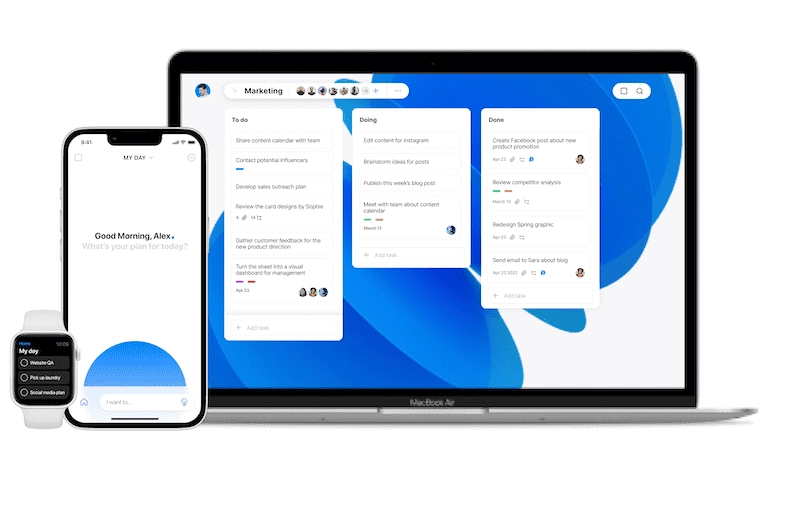
In a nutshell: a neat calendar & task management app that integrates with most messengers & management platforms
Any.do combines calendar functionality with robust task management in a sleek package. Apple even named it an official editor’s choice for all-in-one to-do lists, reminders, and calendars on Mac.
You can customize its appearance with different background wallpapers and themes. The visual personalization goes beyond aesthetics, though. Color coding and layout options help create a calendar experience that matches how your brain processes information.
The real strength is third-party integration. Any.do supports over 1,500 services, including heavyweights like Evernote, Trello, Slack, and OneNote. This extensive integration ecosystem makes Any.do particularly valuable for professionals working across multiple platforms who need their calendar as a central coordination hub.
The task management component blends seamlessly with calendar functionality, letting you view upcoming events alongside your to-do items. This unified approach prevents the common problem of maintaining separate systems for scheduling and task tracking.
Price: $2.99/month when billed annually for the premium version, but there’s also a FREE FOREVER plan!
Best for: Users who want to combine calendar management with robust task tracking and extensive third-party integrations.
4. BusyCal
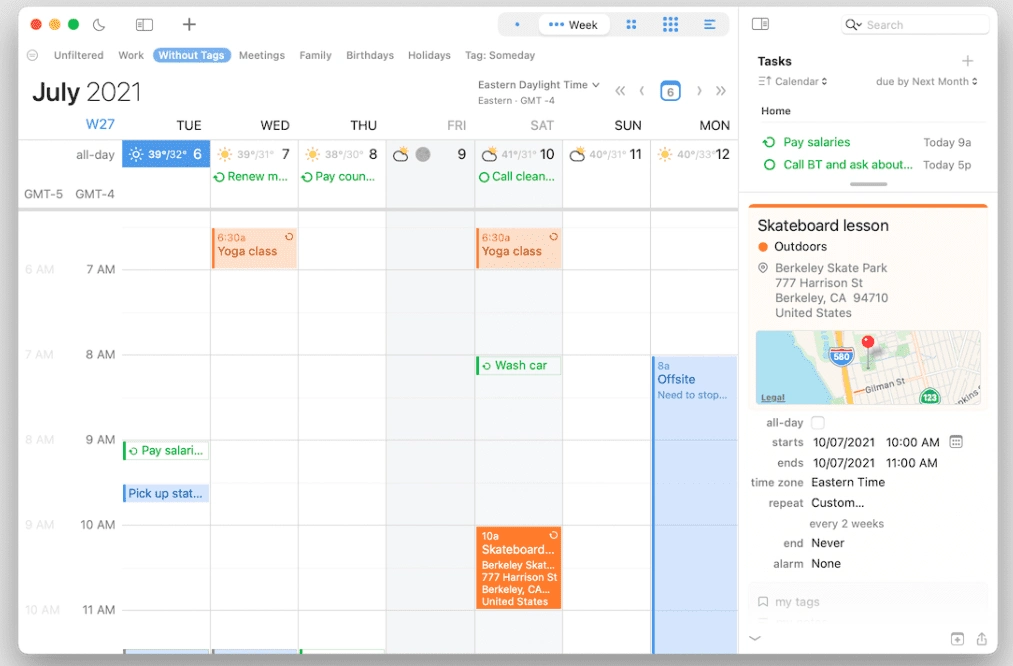
In a nutshell: another native for Mac users calendar app with handy features & rich customization
BusyCal takes a different approach. You can integrate it with email accounts on your Mac or even CRM systems, with real-time syncing. The direct CRM integration is particularly valuable for sales professionals and client-facing roles where calendar activities need to sync with customer relationship management systems.
The design looks simple and clean, but it hides impressive capabilities. Weather forecasts and moon phases might sound quirky, but they’re genuinely useful. Weather integration displays forecast information directly in your calendar, helping you plan outdoor activities or travel with confidence. Moon phases prove valuable for photographers, outdoor enthusiasts, and anyone whose activities correlate with lunar cycles.
You can customize event display with Smart Filters. Show only birthdays, or just recurring work meetings, or apply multiple rules simultaneously to organize your calendar for specific purposes. This filtering becomes invaluable when your calendar grows complex with multiple event categories.
Other features include sidebar view, travel time calculation, automatic time zone matching, free text input, and extensive customization options, including fonts, colors, and time formats. Travel time calculation automatically adds buffer periods before events with location information, ensuring you account for transit time.
Unlike Fantastical’s subscription model, BusyCal uses a purchase model. Pay once and use it as long as you want. For users who prefer ownership over ongoing subscriptions, this provides better long-term value.
Price: $49.99 one-time purchase with 30-day free trial. Also available through a SetApp subscription for $9.99/month alongside 200+ other Mac and iOS apps.
Best for: Users who want extensive customization, weather integration, and prefer a one-time purchase over subscription pricing.
5. TaskOffice
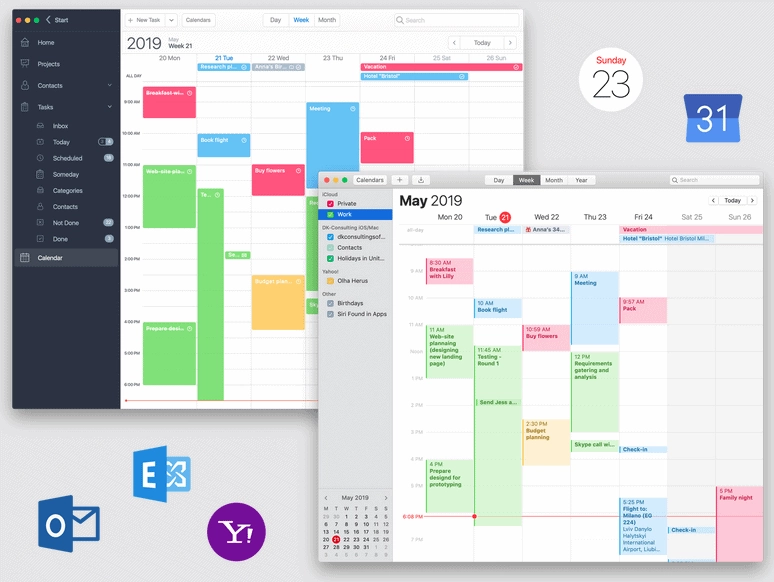
In a nutshell: desktop calendar & to-do-list widget for Mac
TaskOffice combines calendar, to-do lists, projects, and contacts management for iOS and macOS devices. The unified approach creates a comprehensive personal productivity system rather than just another calendar.
The interface uses separate tabs for Projects, Contacts, Tasks, and Calendar entries across the bottom, plus a Home tab for today and current week reminders. You can tackle current tasks in a color-coded timeline that makes sense of even the busiest weeks. The color coding system is both functional and visually appealing, helping you identify different project categories or priority levels instantly.
Two-way syncing works with Apple iCal, Google Calendar, Exchange, Yahoo, Outlook, and others. Once connected, everything updates automatically. This bidirectional sync ensures changes made in TaskOffice reflect in your other calendar systems and vice versa, maintaining consistency across platforms.
The project management component distinguishes TaskOffice from pure calendar apps, making it suitable for professionals who need to track both time-based events and project milestones in a single interface.
Price: $19.99 one-time purchase.
Best for: Users who want to combine calendar, tasks, projects, and contacts in one affordable application with one-time pricing.
6. ItsyCal

In a nutshell: Itsycal is a highly accessible & handy menu bar calendar widget app, conveniently accessible through an icon.
As good as macOS is, it sometimes misses some pretty basic and natural features. Like clicking on the time in your menu bar to open a calendar, which Windows has done for ages.
Itsycal isn’t a full calendar app, but rather a widget. For quick reference, it’s actually better than macOS’s built-in calendar, plus it’s completely free. The menu bar shows your current date, and clicking reveals a miniature calendar pop-up, which is exactly what you need for instant reference.
You can configure a global keyboard shortcut for even faster access when working in other applications. Below the calendar, you’ll see your appointments, and you can use keyboard search for specific dates. You can add appointments quickly without opening a full calendar application.
For what it is (a simple macOS calendar addon), Itsycal offers surprising customization. Toggle between light and dark modes, change icon appearance, or pin the menu bar display to your screen for constant visibility while composing emails or notes.
The minimalist approach makes Itsycal particularly appealing for users who don’t want another resource-heavy application. It serves one purpose exceptionally well: instant calendar visibility with minimal friction.
Price: Free and open-source.
Best for: Users who want quick menu bar calendar access without a full application, completely free.
7. Calendar366II

In a nutshell: Calendar 366 II is a versatile and powerful menu bar calendar widget for macOS
Calendar366II was designed as a supplement to Apple’s default calendar, but it’s comprehensive enough to potentially replace it entirely in some scenarios. The app strikes an interesting balance between a lightweight menu bar utility and substantial functionality typically found in full calendar applications.
There’s no full-screen view available. It’s purely menu-bar-based. This constraint is intentional and serves users who prefer quick, unobtrusive calendar access rather than screen-dominating applications.
You still get various views, though: yearly, monthly, weekly, schedule, current day, and more. The app offers 8 different views and 9 themes to match your needs and taste. This level of customization within a menu bar utility is impressive and rare among competitors.
Calendar366II offers standard syncing options and integrates well with the native macOS interface. It’s simple to use Spotlight Search for calendar entries, or even use Calendar366II instead of the default macOS clock widgets. This deep macOS integration makes the widget feel native despite being third-party software.
The app includes a natural list view displaying upcoming events in a clean, readable format, making it easy to scan your schedule without the spatial overhead of a full calendar grid.
Price: $14.99 with a 30-day free trial. Calendar 366 for iPhone and iPad costs $6.99.
Best for: Users who want a feature-rich menu bar calendar widget with multiple views and themes, more powerful than Itsycal but still compact.
8. Calendly

In a nutshell: Calendly is a very friendly free Mac calendar & scheduling app that allows you to collaborate with multiple team members.
Calendly functions as both a calendar app and an appointment scheduling solution designed to eliminate back-and-forth emails typically required for meeting coordination. While not exclusively designed for Mac, it works excellently on MacBooks and integrates with Mac workflows.
Small businesses can create availability rules using Calendly, then share custom Calendly links with customers for easy self-service appointment booking. This “book me” functionality lets clients schedule appointments based on their preferences while respecting your availability constraints. The automation eliminates typical “when are you available” exchanges that consume significant time in professional contexts.
A particularly smart feature is automatic buffer creation around meetings, preventing overlapping appointments and back-to-back scheduling. This buffer time proves essential for professionals who need transition time between meetings for note review, bathroom breaks, or simply catching their breath. Implementing proper buffer times significantly reduced meeting fatigue in my consultancy work.
This appointment booking and reminder solution offers unique meeting types like round-robin, collective, and one-on-one formats. Round-robin automatically distributes incoming meeting requests across team members for workload balance. Collective meetings allow multiple team members to join based on availability, perfect for panel interviews or group consultations.
Multiple third-party integrations enable syncing with various calendars. It connects with Zoom, Microsoft Teams, Google Meet, and other video platforms to automatically generate meeting links.
Price: Free version includes basic booking capabilities and a single calendar view. Paid plans with team solutions cost $8 to $16 monthly.
Best for: Professionals, consultants, and small businesses who frequently schedule external meetings and want to automate the booking process.
9. Calendar

In a nutshell: A simple calendar management software for Mac or Android to integrate all of your different calendars into one.
If you want to combine meeting scheduling from different calendars (Google Calendar, Apple’s iCal, Outlook, etc.) into a single interface, Calendar.com provides a solid solution. It helps you schedule appointments, sync across devices, receive reminders and notifications, and even get meeting auto-transcriptions in paid versions.
The unified calendar view eliminates checking multiple calendar applications to understand your full schedule. This becomes increasingly important as professionals juggle work calendars, personal calendars, and sometimes multiple work calendars across different organizations or projects.
The AI function monitors your schedule and automates certain tasks without input. While specific automation capabilities vary by subscription level, the AI can suggest optimal meeting times based on your patterns, identify scheduling conflicts before they occur, and help protect focus time by recognizing when you need uninterrupted work blocks.
You’ll receive valuable analytics showing how you spend time. These insights reveal patterns you might not consciously notice, such as excessive meeting time, fragmented work periods, or imbalanced work-life distribution. Understanding these patterns enables data-driven decisions about schedule optimization.
Price: Paid versions range from $6 to $8 monthly, with a free, limited version available.
Best for: Users who manage multiple calendar systems and want AI-powered insights into their time usage patterns.
10. InstaCal
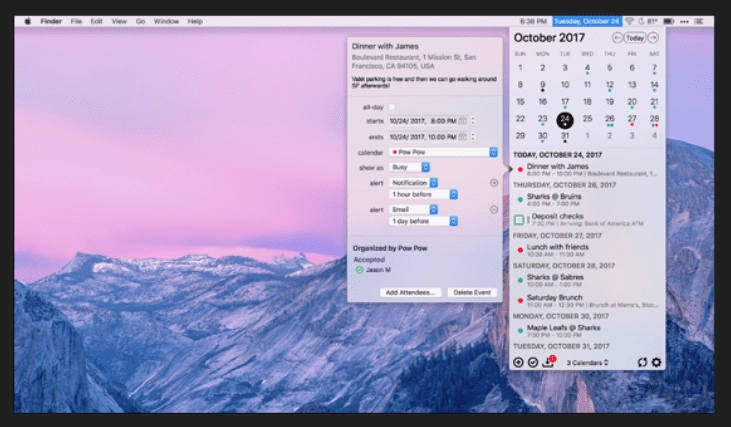
In a nutshell: Instacal is another simple but convenient Mac calendar app that’s always a click away.
InstaCal operates without a full-page calendar view. Instead, it opens as a small pop-up menu. It handles all the scheduling and reminders that other calendars provide while syncing with Google and Outlook calendars. The app packs competitive functionality into a smaller, more streamlined package.
You can plan entire weeks or months using the InstaCal calendar view. Its minimal display is backed by detailed scheduling windows that let you assign times and dates, schedule email alerts, and send invitations. The compact interface doesn’t sacrifice functionality, proving that effective calendar management doesn’t require screen-dominating applications.
It shows upcoming events every time you open the calendar, making it easy to stay on top of meetings and appointments. This immediate visibility of upcoming commitments helps maintain awareness without requiring deliberate checking.
If you have work and personal schedules across several calendars, InstaCal consolidates them. It syncs easily with Microsoft Office, Google Calendar, and iCal. This sync even lets you respond to invitations from any calendar within the InstaCal window, eliminating the need to jump between different calendar applications.
Price: Available from App Store for $5.00 flat price.
Best for: Users who want a lightweight, affordable menu bar calendar that consolidates multiple calendar sources.
11. Google Calendar

In a nutshell: Default calendar app from Google, for Mac, or any other computer
Google Calendar made our list even though there’s no dedicated Mac app to install. You can access it through any web browser on Mac devices. Most apps on this list sync with Google Calendar anyway, so you could get the best of both worlds by combining them.
Google Calendar is popular because it comes naturally with Gmail, YouTube, and G-suite applications. You can create multiple calendars with a single Google account and transfer those entries to almost any other online calendar. This flexibility makes Google Calendar the de facto standard for cross-platform calendar management.
You can link Google Calendar not only to other calendar apps but also to commercial apps with calendar functionality, such as Trello and Asana. The extensive ecosystem of integrations means Google Calendar often serves as connective tissue between various productivity and project management tools.
Colored labels for individual calendars make it easy to see which life area events relate to. You can show or hide calendars to focus on specific event types. This layer management proves particularly valuable when maintaining separate calendars for different roles, projects, or life areas.
In organizational settings, Google Calendar lets you check coworkers’ calendars alongside yours. Inviting others to your calendar is straightforward. However, Google Calendar might not be ideal for employee team scheduling for several reasons, including limited employee scheduling features anda lack of shift management capabilities.
You can share entire calendars or use invitation options to add people to specific events. Granular permission controls allow sharing calendars with varying levels of access, from view-only to full editing rights.
Price: Completely free and accessible from any laptop, desktop, or smartphone.
Best for: Users who prioritize cross-platform accessibility, extensive integrations, and zero-cost solutions.
AI-Powered Features in Modern Calendar Apps
The calendar landscape has transformed dramatically with AI integration in 2026. Traditional calendar apps simply stored and displayed events. Modern solutions actively optimize your schedule, predict needs, and automate routine scheduling tasks.
Smart scheduling and automatic time blocking represent the most impactful AI features. These systems analyze your calendar patterns, identify productive hours, and automatically protect time for focused work. Some apps can even reschedule less important meetings when conflicts arise, negotiating with participants to find mutually acceptable alternatives. Your calendar actively works to optimize your day rather than passively recording it.
Natural language processing has evolved beyond basic event creation. Modern implementations understand context, recognize patterns, and infer details you haven’t explicitly stated. Typing “call with the marketing team” might automatically add your recurring marketing team members and suggest usual meeting times based on historical patterns.
Meeting transcription and summary generation have become increasingly common in premium calendar apps. AI can join virtual meetings, transcribe conversations, identify action items, and even schedule follow-up meetings mentioned during discussions. This creates a self-reinforcing productivity loop where your calendar becomes smarter about work patterns over time.
Predictive scheduling uses machine learning to suggest optimal meeting times based on participant availability, typical meeting durations, energy levels throughout the day, and even commute patterns. Systems learn from your acceptances and rejections to improve suggestions continuously.
Automated buffer time management ensures you’re not scheduling back-to-back meetings all day. AI recognizes when you need transition time, bathroom breaks, or moments to prepare for the next engagement. This seemingly simple feature can dramatically reduce meeting fatigue and improve daily performance.
For professionals managing complex schedules across multiple time zones, AI-powered calendar apps automatically adjust meeting times, warn about unusual hours, and suggest alternatives that work better for all global participants. This globalization support becomes essential in increasingly distributed work environments.
How We Tested These Calendar Apps
I approached this evaluation with specific criteria developed through years of testing productivity tools and utility software in my content marketing work.
Testing environment and duration: All apps were evaluated on a MacBook Pro M1 running the latest macOS, with supplementary iPhone 14 Pro testing for cross-device sync assessment. Each app served as my primary calendar for at least two weeks to understand real-world performance beyond initial impressions. Surface-level reviews miss friction points and workflow benefits that only emerge through sustained daily use.
Evaluation criteria included:
Installation and setup process was assessed for complexity and time required. Calendar apps requiring longer than 10 minutes to configure or complex authentication procedures scored lower in usability.
Interface design and Mac integration evaluated how naturally each app felt within the macOS ecosystem. Apps following Apple’s Human Interface Guidelines, offering native keyboard shortcuts, and integrating with macOS features like Spotlight Search and notification system scored higher.
Event creation speed and efficiency measured how quickly I could add various event types, from simple appointments to complex recurring meetings with multiple attendees. Natural language parsing quality was tested with 20 standardized phrases to compare parsing accuracy across apps.
Synchronization reliability and speed tested how quickly changes propagated between devices and calendar services. Each app was evaluated with Google Calendar, iCloud, and Exchange integration to verify cross-platform compatibility claims.
Feature completeness assessed whether marketed capabilities worked as advertised. Claims about AI features, automation, and smart suggestions were tested through real-world scenarios rather than controlled demonstrations.
Performance and resource usage monitored RAM consumption and CPU impact, particularly important for menu bar utilities running continuously in the background. Apps consuming excessive resources relative to functionality were noted.
Mobile app parity checked whether iOS versions offered comparable functionality to Mac versions, as calendar apps are only fully useful when features work consistently across all needed devices.
Customer support responsiveness was evaluated by submitting questions to each vendor and documenting response time and solution quality. While not used daily, support quality matters when issues arise.
This systematic approach, combining quantitative metrics with qualitative daily usage experience, provides a foundation for recommendations extending beyond marketing claims to actual performance.
So, What Is The Calendar App for Mac of Your Choice?
By now, you definitely know that Mac calendar apps and widgets are abundant and vary significantly. The landscape has evolved dramatically in 2026, with AI-powered features, sophisticated automation, and seamless cross-platform integration becoming standard expectations rather than premium extras.
Just like any tool or software, the best one for you fits your specific criteria and workflow. For many Mac users, Apple’s default calendar handles the job perfectly well, particularly if your scheduling needs are straightforward and you value simplicity over advanced features.
Others looking for more capabilities (to-do lists, customizable colors, availability sharing, weather alerts) might prefer proprietary calendar apps like BusyCal or Fantastical. These add substantial power without departing from Mac’s native design language, making them feel like natural operating system extensions rather than foreign applications.
If you need planning and task management aspects, apps like Any.do and TaskOffice work better. The unified approach to calendar events and task tracking prevents fragmentation that occurs when managing these functions separately.
Itsycal and Calendar366II are excellent for keeping things basic and clean with menu bar widget approaches. These solutions provide calendar visibility without screen clutter, perfect for users who reference their calendar frequently but briefly throughout the day.
Consider tools like Calendly to see upcoming events and open your calendar for appointment booking. This transforms your calendar from a personal tool into a business interface, enabling clients and partners to schedule time with you efficiently.
Whether you’re a student, freelance worker, or business owner, having the right calendar app helps you stay on top of daily tasks and weekly schedules. Time invested in finding and configuring the optimal calendar solution pays ongoing dividends through reduced scheduling friction, fewer missed appointments, and better work-life balance.
Calendar Apps for Mac: Quick Comparison
| App | Price | Best For | AI Features | Natural Language | Mobile App |
|---|---|---|---|---|---|
| Apple Calendar | Free | Basic needs, Apple ecosystem | No | No | iOS |
| Fantastical | $4.75-7.50/month | Power users, natural language | Limited | Yes | iOS |
| Any.do | $2.99/month | Tasks + calendar combo | Limited | No | iOS, Android |
| BusyCal | $49.99 one-time | Customization, weather | No | Yes | iOS |
| Task Office | $19.99 one-time | Projects + calendar | No | No | iOS |
| Itsycal | Free | Menu bar quick access | No | No | Mac-only |
| Calendar366II | $14.99 | Menu bar with features | No | No | iOS |
| Calendly | Free-$16/month | Appointment booking | Yes | No | iOS |
| Calendar.com | $6-8/month | Multiple calendar unification | Yes | No | iOS, Android |
| InstaCal | $5 one-time | Affordable menu bar option | No | No | Mac-only |
| Google Calendar | Free | Cross-platform, integrations | Limited | No | iOS, Android |
So what’s your favorite calendar app or widget for Mac? A well-designed Mac calendar app helps you stay organized, and when combined with other productivity tools, creates a comprehensive time management system that maximizes daily effectiveness.
Frequently Asked Questions
What is the best free calendar app for Mac?
For Mac users, Apple Calendar provides the best free option if you’re invested in the Apple ecosystem and only need basic functionality. It comes pre-installed, syncs seamlessly with iCloud and iPhone, and handles scheduling fundamentals effectively. However, Google Calendar accessed through a web browser offers superior sharing capabilities and cross-platform accessibility, making it ideal if you collaborate frequently or use multiple device types. Itsycal provides the best free menu bar experience for quick reference without a full application.
Do Mac calendar apps work with Google Calendar?
Yes, virtually all Mac calendar apps on this list sync with Google Calendar. Integration levels vary, with some apps offering bidirectional sync that propagates changes in both directions, while others primarily read from Google Calendar. Apps like Fantastical, BusyCal, and Calendar.com provide particularly robust Google Calendar integration, including support for multiple Google accounts and calendar layers. For optimal compatibility, verify your chosen app explicitly lists Google Calendar support before purchasing.
Which calendar app is best for teams?
Calendly stands out for team scheduling, particularly when booking external meetings or managing appointment booking workflows. Its round-robin and collective meeting features distribute workload fairly and coordinate multi-person availability efficiently. For internal team coordination, Google Calendar’s shared calendar functionality and availability checking work well, especially with the free Google Workspace tier. BusyCal offers strong team features for smaller teams who prefer desktop applications over web interfaces. Consider your specific needs: external appointment booking, internal meeting coordination, or resource scheduling, as the optimal solution varies.
Can I use these calendar apps on an iPhone too?
Most calendar apps on this list offer iOS versions, but functionality parity varies. Fantastical, BusyCal, Any.do, TaskOffice, and Calendar366II all provide dedicated iPhone apps with most features from their Mac counterparts. ItsyCal is Mac-only but works with Apple Calendar data accessible on iPhone. Calendly and Google Calendar work through mobile browsers or dedicated iOS apps. When evaluating options, specifically check whether features you rely on most are available on mobile versions, as some apps reserve advanced capabilities for desktop applications.
What calendar app has AI scheduling features?
Calendar.com offers AI-powered schedule monitoring and optimization in paid tiers. Features like smart meeting suggestions and automated time blocking are becoming more common across calendar apps in 2026, though implementation quality varies significantly. When evaluating AI features, test them directly rather than relying on marketing claims, as “AI” has become a buzzword applied to varying levels of actual intelligence. Features like natural language parsing in Fantastical, while not always marketed as AI, represent practical artificial intelligence applications providing immediate value.
Are paid calendar apps worth the subscription cost?
Value depends on your specific workflow and how much time calendar inefficiencies currently cost you. If you spend 15 minutes daily fumbling with calendar management, and a paid app reduces that to 5 minutes, you’re saving 10 minutes daily or roughly 60 hours annually. Calculate your hourly value and assess whether time savings justify subscription costs. For many professionals, features like natural language input, duplicate detection, and smart scheduling in paid apps like Fantastical quickly pay for themselves. However, if you rarely reference your calendar and only schedule a few events weekly, free options likely suffice.
How do I sync my Mac calendar with iPhone?
The easiest method uses iCloud Calendar sync, which works automatically when signed into the same Apple ID on both devices with Calendar sync enabled in iCloud settings. For non-Apple calendars like Google Calendar, enable calendar sync in account settings on both devices. Third-party calendar apps like Fantastical or BusyCal sync through their cloud services when you install their iOS apps. Verify sync works by creating a test event on one device and confirming it appears on the other within seconds. If sync fails, check internet connectivity, account credentials, and sync settings on both devices.
What’s the best calendar app for privacy?
Apple Calendar offers the strongest privacy protection among mainstream options, as Apple’s business model doesn’t rely on harvesting user data. All calendar data stays within your iCloud account with end-to-end encryption. BusyCal provides strong privacy through local storage and peer-to-peer sync options that don’t route data through external servers. Google Calendar, while functional, collects data for advertising purposes according to its privacy policy. For maximum privacy, use Apple Calendar or BusyCal with iCloud sync rather than third-party calendar services.
Did you find it valuable? Please rate to support our work!
Discover more from Best Software & Apps — Tested & Reviewed
Subscribe to get the latest posts sent to your email.